


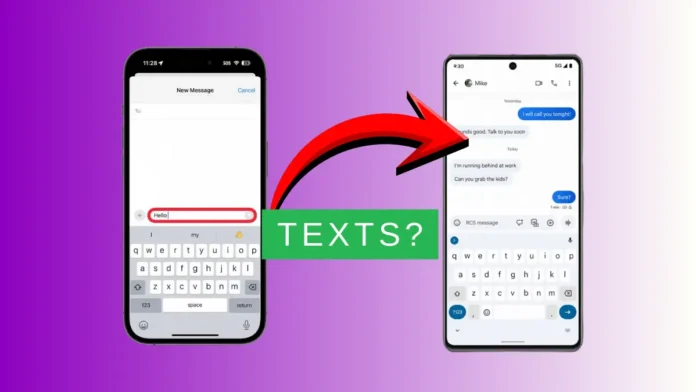
If your iPhone is not receiving texts from Android, it can be very frustrating. Many users worldwide face this problem because of iMessage, RCS, or carrier issues.
Sometimes blocked numbers or incorrect settings also stop messages from arriving. This guide explains all causes and provides easy fixes. You can follow these steps carefully and restore your messaging quickly.
Read Also: Samsung Galaxy A56 Price May Increase Soon in India
Understanding Why iPhone Not Receiving Texts from Android
Before fixing the problem, it is important to understand the reasons. iMessage interference is a common cause. If your phone number is incorrectly registered with iMessage, Android messages may never arrive. This often happens after switching phones or restoring backups.
Another reason is RCS and SMS mismatch. Most Android devices use RCS messaging by default. If RCS cannot switch messages to SMS for iPhone, messages appear sent but do not arrive. Carrier or SIM-level problems can also block messages.
SMS depends on your mobile carrier, and misconfigurations or temporary network issues may prevent delivery. Incorrect iPhone settings are another source of failure. Blocked contacts, wrong SIM selection, or date and time errors can silently stop messages.
Group messaging limitations are common in mixed-device conversations. iPhone and Android group chats rely on MMS, and if MMS is not enabled, messages may not appear. Understanding these causes helps you apply the correct solutions effectively.
Basic Steps to Fix iPhone Not Receiving Texts from Android
Start with simple checks before applying advanced solutions. Restart both your iPhone and the Android phone. Restarting the devices refreshes the network and messaging apps.
Check your cellular signal because SMS requires mobile network coverage, not Wi-Fi. Make sure your iPhone shows good network reception. Set the date and time to automatic in settings. Go to Settings, then General, and enable Set Automatically.
An incorrect time can prevent messages from arriving. Refresh the network connection by turning Airplane Mode on and off. Swipe down from the top-right to open Control Center. Turn on Airplane Mode, wait a few seconds, and then turn it off. This simple step often resolves pending messages and restores connectivity.
Also Read: Samsung Galaxy Watch Ultra 2 Launch Timeline Leaked: Full Details Explained
Advanced iPhone Fixes for Android Text Issues
If basic steps do not work, advanced solutions may help. Check MMS and group messaging settings if texts arrive individually but fail in groups. MMS enables multimedia messages and group chat support. In iOS 26, Apple removed visible MMS controls from settings.
Therefore, you must contact your mobile carrier. Ask the carrier to enable MMS and mixed-device group messaging for your SIM or eSIM. Messages may fail if numbers are blocked. Open Settings, go to Phone, and check Blocked Contacts.
Remove blocked Android numbers to resume message delivery. A full messaging inbox can prevent new messages. Delete old texts to free storage. This is particularly important for MMS messages from Android. Updating iOS can fix message delivery bugs.
Open Settings, go to General, then Software Update, and download the latest version. Carrier settings updates may also solve the problem. Go to Settings, General, About, and tap Update if it appears. Resetting network settings can help if messages still fail.
Open Settings, then General, Transfer or Reset iPhone, and choose Reset Network Settings. Enter your passcode to confirm. This clears Wi-Fi and cellular settings but often resolves SMS issues. If network reset does not work, reset all iPhone settings.
This keeps your data but restores default configurations. Open Settings, go to General, Transfer or Reset iPhone, and select Reset All Settings. Enter your passcode to complete the reset. The Android device may also cause the problem. RCS is Google’s messaging system similar to iMessage.
If RCS is enabled on the Android phone, it may prevent messages from reaching iPhone. Disable it in Messages Settings by opening the Messages app, tapping the avatar, and turning off Chat features. If all else fails, contact your carrier. They can check for account or network issues that may block messages.
Read Also: Vivo X300 Price in India Launches Big Hope for Flagship Fans
Fixing Android Not Receiving Texts from iPhone
The issue may also exist on the Android side. Start by checking the network and signal strength. Weak signals or Airplane Mode can block messages. Refresh the connection by toggling Airplane Mode. Unblock the iPhone number on your Android if messages are missing.
Go to Settings, Phone, then Blocked Numbers, and remove blocked contacts. Ensure your phone bill is paid because unpaid balances may stop messages. Enable Send as SMS on the iPhone if iMessage is unavailable. Open Settings, go to Messages, and enable Send as SMS.
Turn off iMessage if you switched from iPhone to Android. Messages will not reach Android if iMessage remains active. Use Settings on the iPhone or deregister iMessage through Apple if the iPhone is no longer available. iOS 18 supports RCS messaging, which improves message delivery.
Enable RCS Messaging in Settings under Messages for smoother cross-platform communication. Messaging apps like WhatsApp or AirDroid can also solve the problem. They send messages over Wi-Fi or data, bypassing SMS issues.
Sign up with your phone number, add contacts, and communicate easily. Switching to the same operating system may also solve the problem. iPhones and Androids use different messaging protocols, which can sometimes cause message delivery failures.
Understanding messaging systems helps troubleshoot problems. RCS allows sending high-quality photos, videos, read receipts, and typing indicators over data. iMessage is exclusive to Apple devices, supports encryption, and works similarly over Wi-Fi. Older iPhones send messages to Android via SMS, while iOS 18 supports RCS for better compatibility.
Fixing iPhone not receiving texts from Android is usually simple and effective. Most problems are caused by iMessage, RCS conflicts, or carrier settings. Start with basic checks, restart devices, and ensure strong network signals.
Update iOS and carrier settings, reset network or all settings if needed. Unblock numbers and check MMS configurations to restore messaging. Following these steps allows messages to arrive reliably across devices worldwide.
