


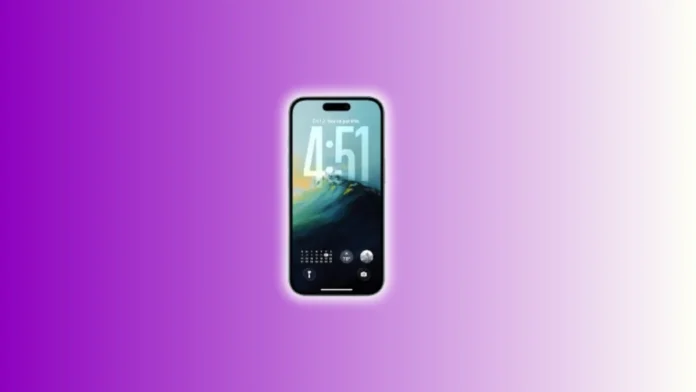
Customise Android and iOS Lock Screen to improve daily phone use. Widgets offer quick information and simple actions anytime. They help save time and reduce screen taps daily.
These tools work well on both home and lock screens. Apple and third-party apps offer many widget choices. Each widget gives helpful shortcuts that support smooth digital use.
Read Also: How to Setup Your Netflix Household Account: A Complete Guide
Understanding Widgets on Modern Smartphones
Widgets bring fast access to key information. They help you check details without opening apps. Apple offers many widgets for daily needs. Third-party apps add even more useful widgets.
Some widgets are simple and some interactive. Some show information and some perform actions. You can edit, move, size, or remove widgets easily.
Why Widgets Matter Today
Widgets improve your phone by offering speed. They show useful information instantly whenever needed. They help reduce distraction by avoiding full apps. They help you organise your phone more clearly. They let you create cleaner screens with important tools only.
Adding Widgets on Home and Lock Screens
Widgets are easy to add on home screens. The steps stay simple for most setups today.
How to Add Home Screen Widgets
- Long-press your home screen background area.
- Tap Edit, then choose Add Widget option.
- Browse widget options from installed apps list.
- Choose preferred size from available widget layouts.
- Drag widget into place and tap Done afterward.
Home screen widgets can be edited later anytime. You can change their size, remove them, or adjust displayed details.
How to Add Lock Screen Widgets
- Long-press your Lock Screen to open edit mode.
- Tap Customize, then choose Lock Screen option.
- Tap Add Widgets and browse supported widgets.
- Choose compact widgets due to limited Lock Screen space.
- Tap Done to save and apply your updated layout.
Lock Screen widgets offer fewer size choices because of space limits. However, they still deliver helpful shortcuts and quick views.
Using Smart Stacks for Better Space Management
Smart Stacks help combine many widgets into one spot. This keeps your screen clean and organised always.
How Smart Stacks Work
A Smart Stack refreshes based on time and activity. It shows different widgets during different moments. It can change automatically without user action. This delivers updated views whenever you need fresh information.
Creating Custom Smart Stacks
- Add one widget onto your home screen.
- Add another widget by dragging it on top.
- Continue stacking up to ten widgets inside.
- Scroll through them by swiping within the widget block.
Custom Smart Stacks let you control the widget order. They help you place many widgets without filling your screen.
Effective Widget Placement for Daily Productivity
Widget placement makes a big difference in usability. Proper layout helps reduce clutter and improves focus.
Tips for Smart Widget Arrangement
- Put important widgets at the top area.
- Keep less-used widgets in lower sections.
- Use small widgets when space gets limited.
- Use Today View for secondary widget groups.
Understanding Today View Benefits
Today View keeps useful widgets separate from main screens. It appears when you swipe right on your home screen. You can edit, resize, or remove widgets here easily. Many people place calendars, battery widgets, or timers here. This keeps their main home screen clean and focused always.
Interactive Widgets for Faster Direct Actions
Interactive widgets help you perform tasks without launching apps. Some widgets allow tapping actions inside the widget itself.
Examples of Interactive Widgets
- Podcasts widget lets you control playback quickly.
- Apple Music widget allows instant playback changes.
- Reminders widget helps check off tasks instantly.
- Timer widgets allow direct start and pause controls.
Third-party apps also support many interactive widgets. These include Things 3 tasks and Overcast playback tools.
Useful Third-Party Widgets Worth Adding
Many apps offer powerful widget options today. Some focus on productivity, while others bring fun or visuals.
Some Popular Third-Party Widget Choices
- CARROT Weather: Offers fun messages and detailed forecasts.
- Dark Noise: Plays calming sounds using quick controls.
- Slack, Outlook, Asana: Help manage work tasks and messages quickly.
- Widgetsmith: Helps design custom widgets with unique layouts.
- Locket: Updates live photos from friends directly on widgets.
These widgets help build a phone experience that fits your lifestyle.
Popular Lock Screen Widgets on iPhone
iPhone Lock Screen widgets offer useful information quickly. They show compact details and require fewer screen taps.
Popular Apple Lock Screen Widgets
Weather Widgets
Weather widgets show temperature, rain chances, or storm updates. They refresh automatically using your location whenever needed.
World Clock Widget
World Clock shows three cities together. You can change and reorder these cities easily.
Battery Widget
Battery widgets show accessory charge levels instantly. You can view circular or full-size formats anytime.
Calendar Widget
Calendar widgets show daily events on your screen. Some show event time while others show names too.
Activity Ring Widget
Activity widgets show exercise, stand hours, and movement. This helps track your daily fitness goals effortlessly.
Task and Search Widgets
TickTick task widgets show tasks with checkboxes for completion. Google Search widgets allow quick typed, voice, or camera searches. Perplexity AI widgets help you get summarised answers faster.
Read Also: How to Search for a Song on YouTube by Simply Whistling or Humming a Tune in 2025
Creating Advanced Widgets Using Launcher and Shortcuts
Launcher helps create powerful custom widgets easily. You can design call shortcuts or message shortcuts instantly. You can also make playlist widgets using music actions. Custom actions help perform steps not offered by normal widgets.
Shortcuts app allows adding personal automation widgets. These shortcuts run actions directly from the Lock Screen. You can toggle Wi-Fi, open notes, or open payment apps instantly.
Using Focus Modes With Widgets
Focus Modes help show different screens during different times. These screens may include different widgets for different situations.
Setting Up Widgets With Focus Modes
- Open Settings and enter Focus Mode menu.
- Choose an existing Focus or create a new one.
- Select custom Lock Screen or Home Screen layouts.
- Add widgets related to work, study, or rest.
Focus Modes help reduce distraction and improve productivity always.
Understanding Widget Limits and Battery Use
Widgets may drain battery depending on their function. Location-based widgets refresh often and use background data.
Managing Battery Consumption
- Keep location widgets on separate screens.
- Remove heavy widgets when battery gets low.
- Rotate widgets when not needed daily.
- Use smaller sizes to reduce heavy refresh tasks.
Knowing When Not to Use Widgets
Not every function needs a widget. Sometimes opening an app is faster. Control Center icons also provide helpful shortcuts.
You can long-press app icons to access quick widget views. Many apps support these layouts without entering edit mode. You should use widgets only where they save real time.
Customise Android and iOS Lock Screen to improve daily phone speed. Widgets provide quick access to tasks, weather, search, and events. Smart Stacks save space and keep screens clean.
Third-party widgets bring more unique options for each user. Focus Modes help create distraction-free screens during work or study. Use balanced widgets for simple, organised, and productive smartphone use.
